
ArcGIS: Editing tide-corrected CSB data
For Trusted Nodes that have access to ESRI software licenses, tide-corrected CSB data can be edited and visualized using ArcGIS Pro.
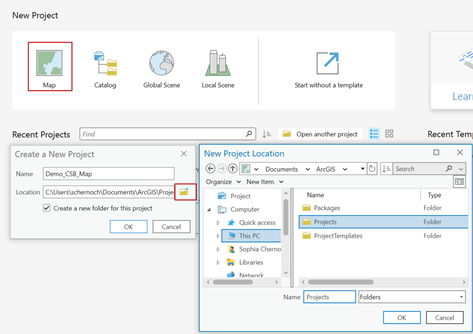
1. Launch ArcGIS Pro and select 'Map' under New Project. Create a name and select a location to save your project.
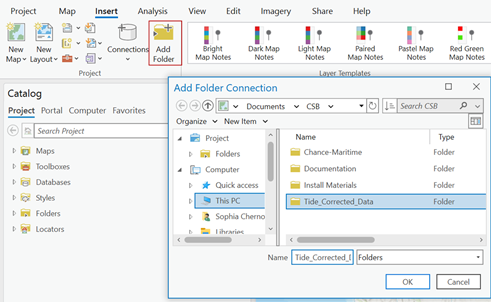
2. Under the Insert tab click 'Add Folder' and select the folder where you set Pydro to output tide corrected data.
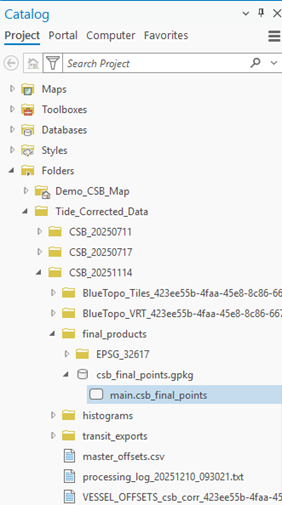
3. In the Catalog pane, click on the Folders dropdown, open the folder you just connected and locate the GeoPackage (.gpkg) that contains the tide corrected shapefile (main.csb_final_points). Click and drag the main.csb_final_points file over the base map to add it as a map layer.
4. In the Contents pane, right click on the main.csb_final_points layer, click on the Data dropdown menu and select 'Export Features.'
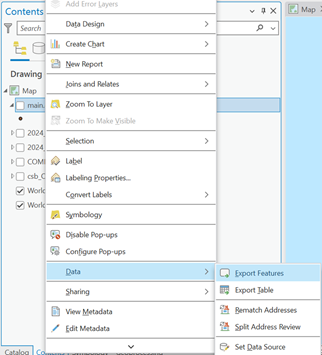
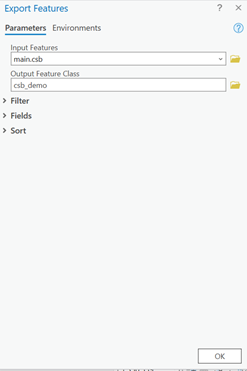
5. When the Export Features box appears, enter an appropriate name for the Output Feature Class, and click 'OK'.
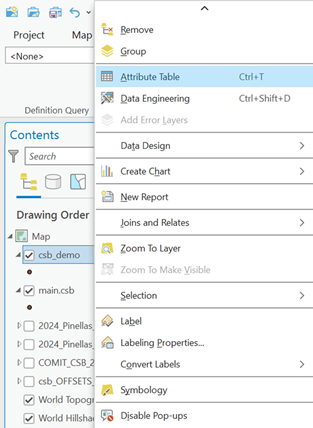
6. In the Contents pane, right click on the feature layer you just created and click on 'Attribute Table.'
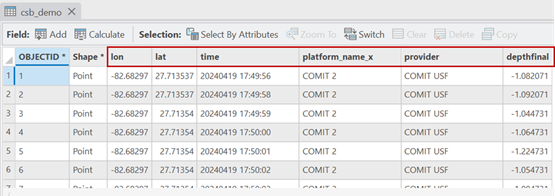
7. The attribute table should contain the following columns: lat, lon, depth, time, and platform_name.
You are now ready to generate shapefiles of CSB data to share with participants.