
NCEI/DCDB data extraction
Perform the following steps to extract CSB data from the DCDB:
- Go to the IHO Data Centre for Digital Bathymetry
Viewer.Viewer.
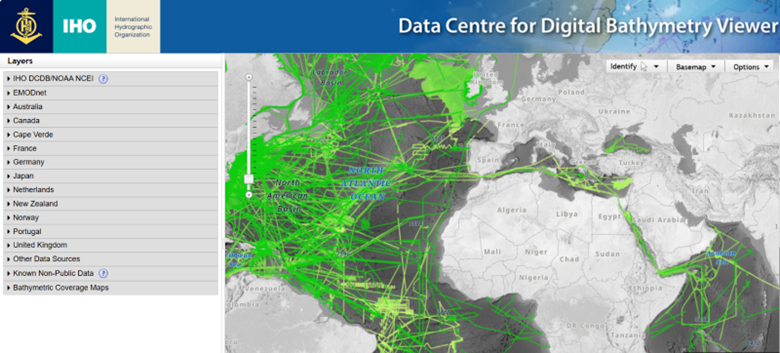
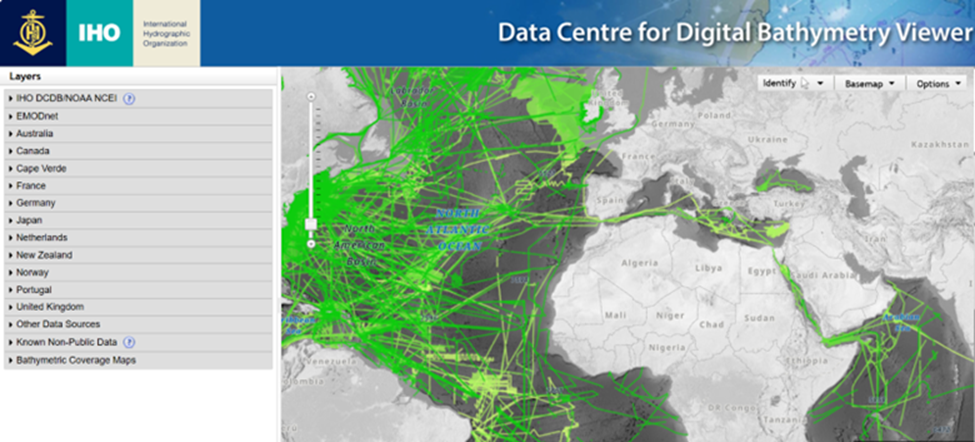
- Click the IHO DCDB/NOAA NCEI drop down menu, uncheck the ‘Multibeam Surveys’ layer and select the ‘Crowdsourced Bathymetry Files' layer.
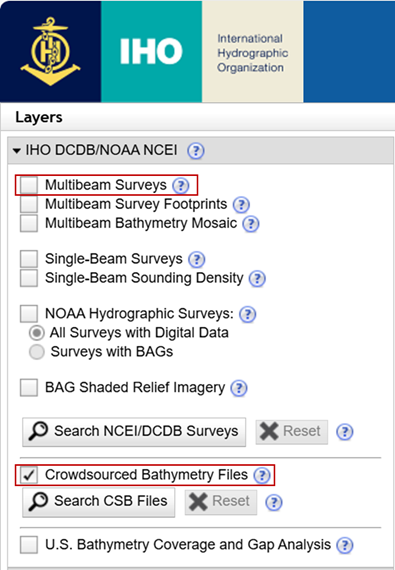
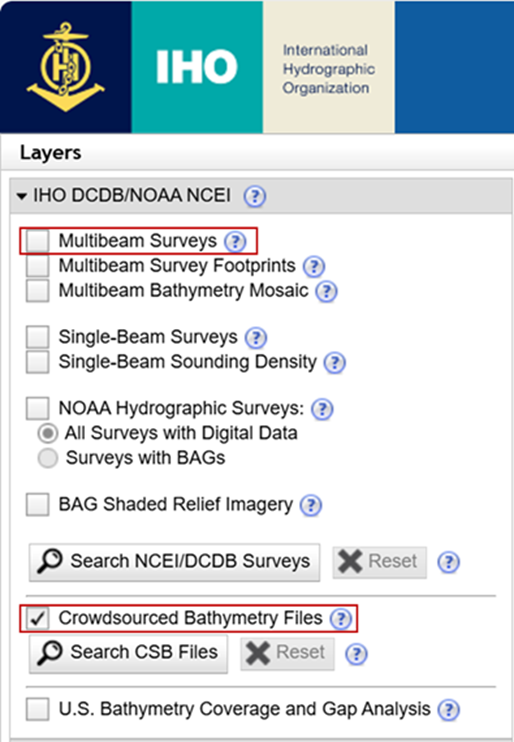
- As an alternative to steps 1 and 2, you can use this link (bookmark it) to navigate directly to the CSB data, instead of having to deselect the multibeam
data.data
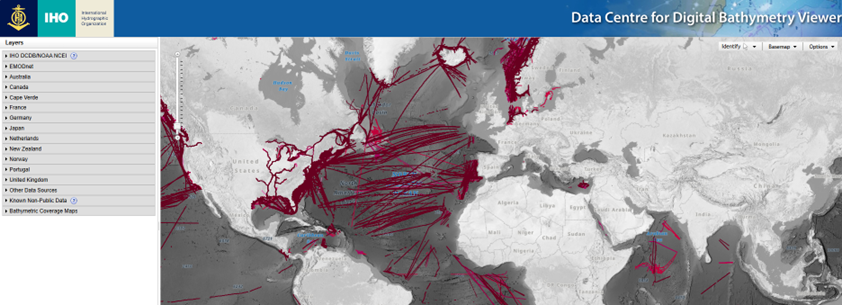
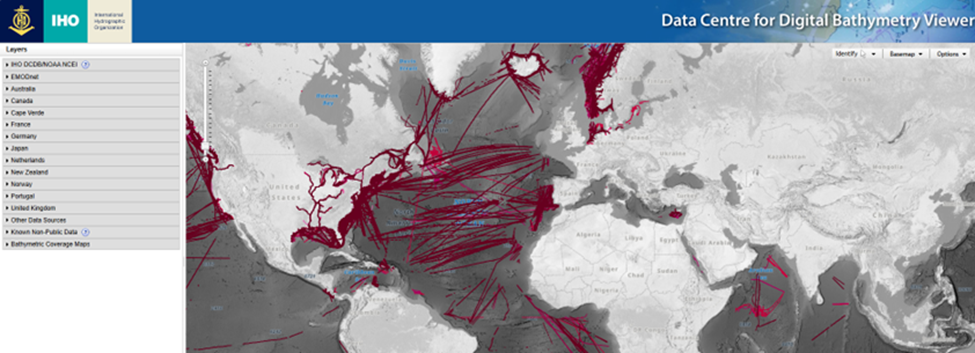
- As an alternative to steps 1 and 2, you can use this link (bookmark it) to navigate directly to the CSB data, instead of having to deselect the multibeam
- Zoom in on the area you want to extract data from. You can also select ‘Search CSB Files’ to filter for a certain date range, Provider (Trusted Node), or Platform Name (vessel name). You can currently only search by one 'Platform Name' at a time, but the DCDB is working on enabling multi-platform searches.
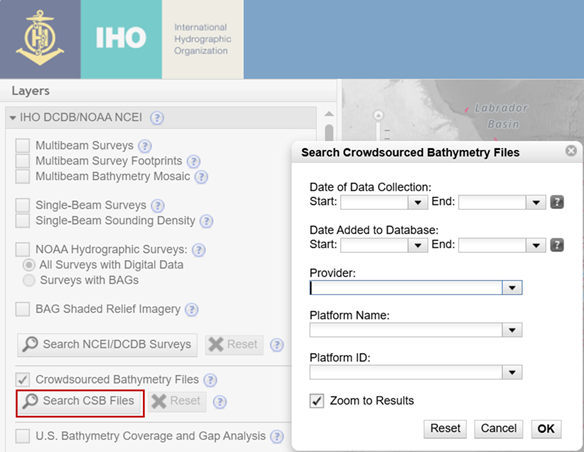
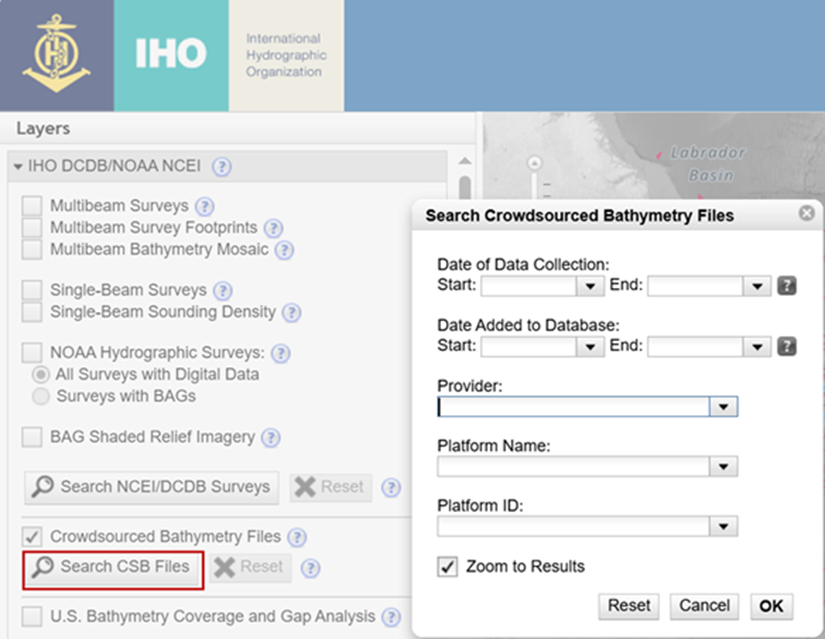
- When you are ready to extract data, click the 'Identify' drop-down menu and select the option you would like to use.
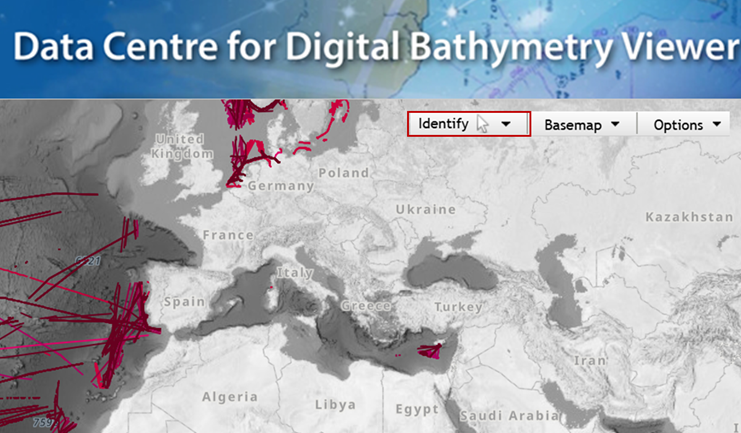
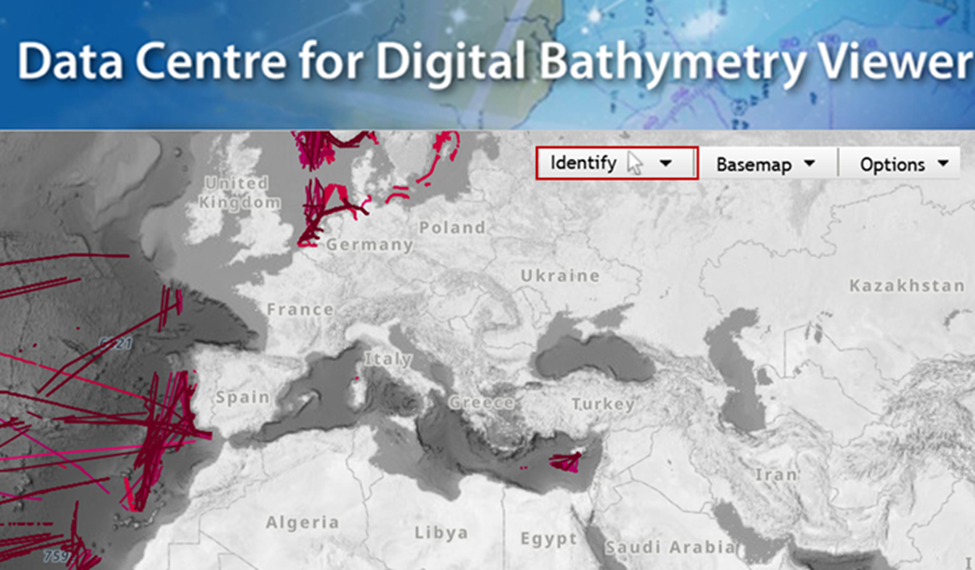
- Draw your bounding area of interest, select ‘Extract NCEI/DCDB Data’ and choose the ‘Extract CSB Point Store Data.’ You will be prompted to enter an email address where the link to download files will be sent to. Do not check the box for ‘Create Grid.' Leave the default for the rest of the options.
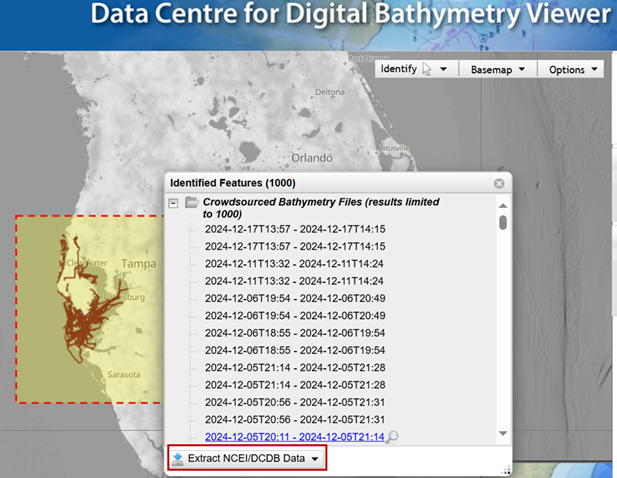
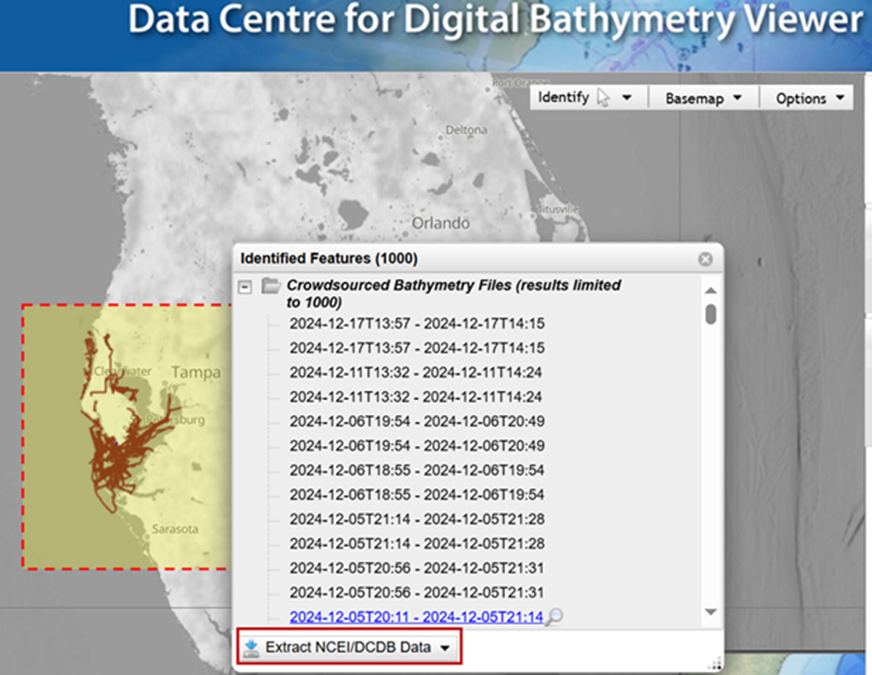

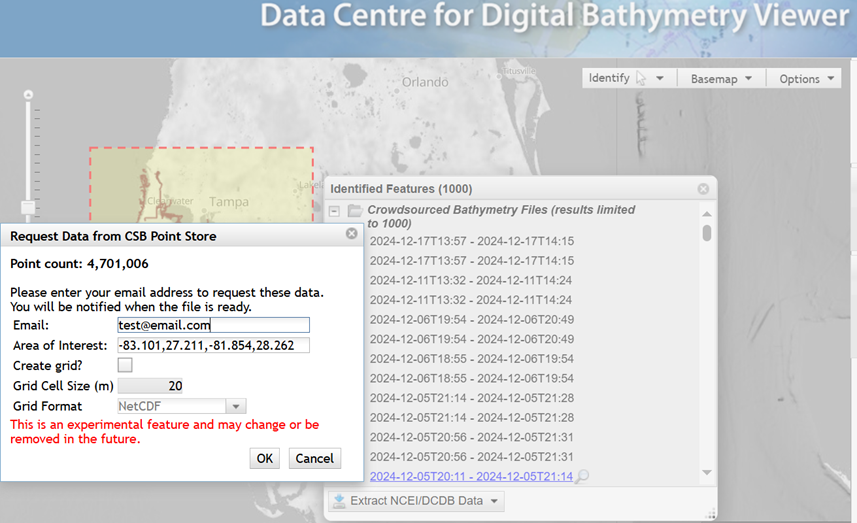
- Depending on the current volume of requests and the size of your requested area, you should receive an email with a link to download your data within a few minutes.
Your CSB data are now downloaded and ready to have Pydro tidal corrections applied.