
WIBL and YDVR data processing
Getting Set Up
You will need to install the following programs to run the WIBL processing scripts:
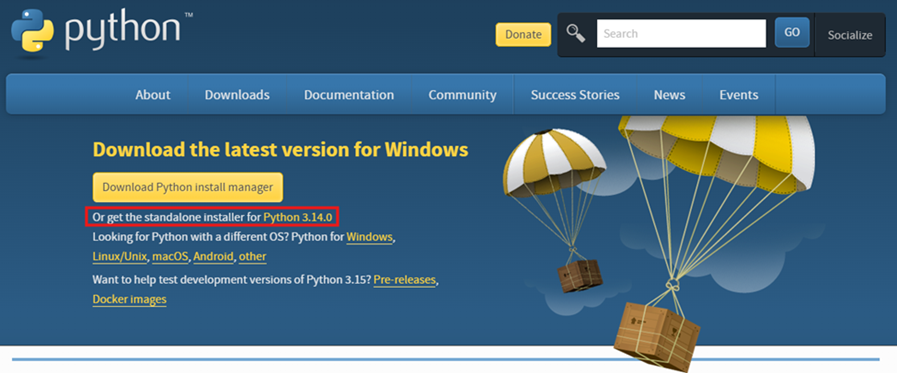
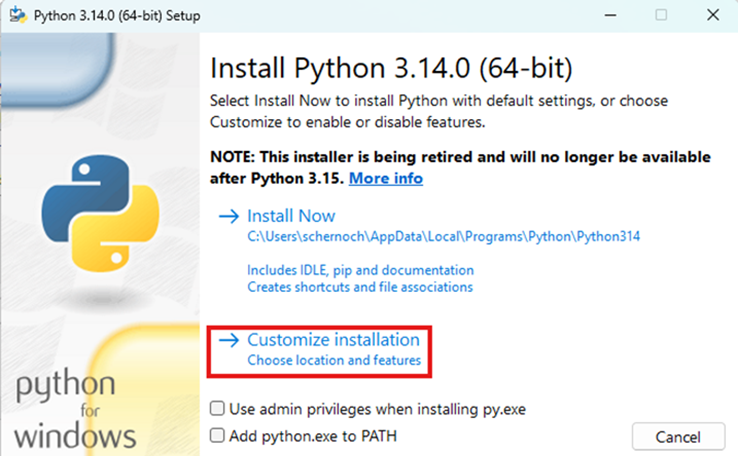
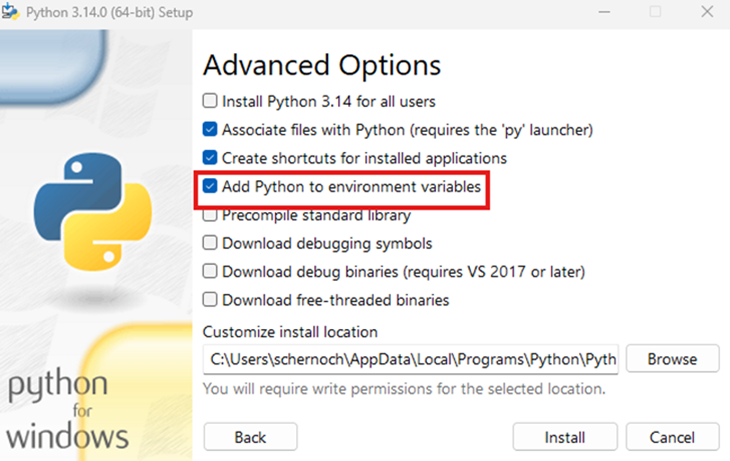
- Python 3.14: download here. Choose Customize Installation. Under Advanced Options check the box "Add Python to Environmental Variables." [More detailed instructions are provided here]
- Windows PowerShell 7: download here
- Miniconda: download here
- Visual Studio Code: download here
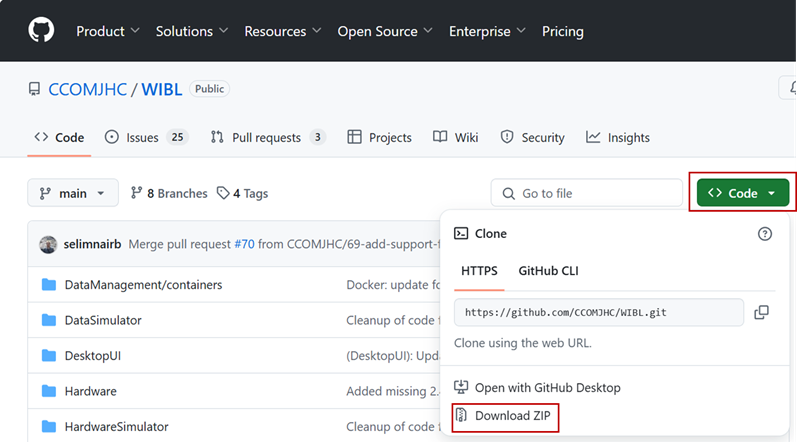
- WIBL GitHub Repository: Linked here. Save the repository to Desktop (or Documents) - do not leave it in Downloads.
Perform the following steps the first time you run the WIBL scripts:
Note: Edit file paths as needed to match the location where your files are saved locally
#Open Anaconda Prompt

#Run the following code
conda init powershell

#Close Anaconda Prompt
---------------------------------------------
#Run Windows PowerShell 7 as an administrator (see screenshot below)

#Run the following code
Set-ExecutionPolicy Unrestricted

#Close Windows PowerShell 7, then reopen (not as admin)

#Set directory to the wibl-python folder within the WIBL repository
cd .\Desktop\WIBL-main\wibl-python

#Install packages
pip install .

#Create environment
conda env create -f environment.yml

#Execute the environment
conda activate wibl-python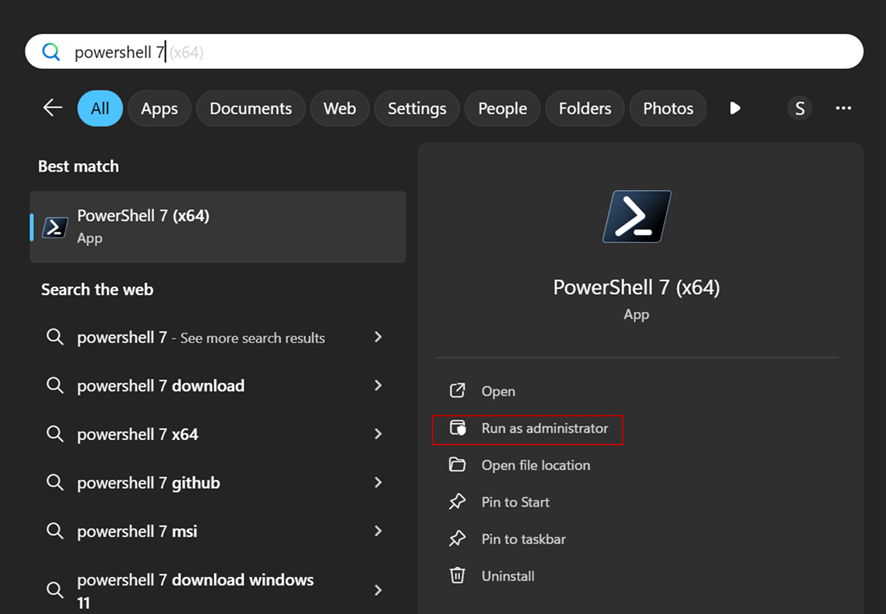
Metadata - Configuration - Authentication
If you did not preload metadata onto the logger before installing it, you will need to create your metadata and configuration files before you can process raw data with the WIBL scripts.
Example metadata and configuration files can be found in the WIBL repository. Guidance for how to properly format each of these file types can be found in the README file located in the same folder.
ExampleMetadata, metadataconfiguration, and configurationREADME file locations in the WIBL repository:
WIBL-Main\wibl-python\examples\ship-metadata-complete.json
WIBL-Main\wibl-python\examples\configure-submission.json
WIBL-Main\wibl-python\examples\README,md